API
1MSG WhatsApp MCP: build integrations without coding
Give your AI agent access to the 1MSG API and turn plain-language requests into WhatsApp integrations, features, and workflows — no coding required.
WhatsApp API MCP from 1MSG
1MSG MCP connects AI agents to the WhatsApp API through the 1MSG SDK. It exposes 60 API tools that an agent can call based on your instructions.
Instead of writing API requests yourself, describe the result you need. For example:
Send the approved order_update WhatsApp template to this phone number using my 1MSG channel.
The agent chooses the appropriate tool and sends the template through your channel.
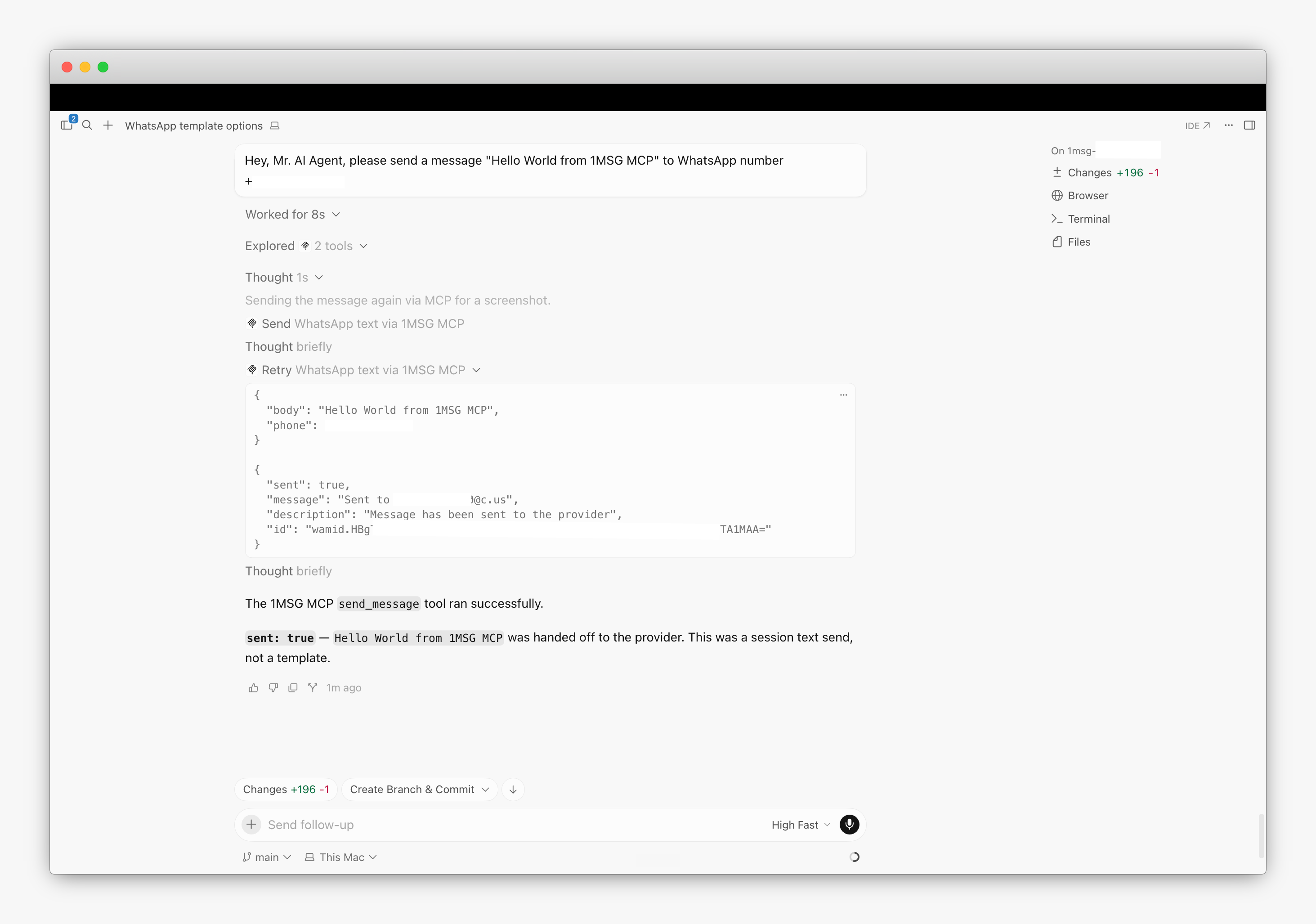
MCP does not push incoming messages directly into your AI agent. The agent can pull messages and other data when requested. Real-time incoming events still require a webhook.
Install and configure WhatsApp MCP
Choose between Cloud MCP hosted by 1MSG and a local MCP process that runs on your computer alongside your AI agent. The setup differs, but the available API capabilities are the same.
Cloud
Cloud MCP is hosted by 1MSG. Connect it to your AI agent and start using it without running your own server.
In the new 1MSG dashboard, open Developers → MCP to find the Cloud URL and a configuration containing your instance ID.
If you use the previous dashboard my.1msg.io, add the configuration manually:
{
  "mcpServers": {
    "1msg": {
      "url": "https://mcp.1msg.io/mcp",
      "headers": {
        "Authorization": "Bearer your-channel-token",
        "X-Instance-Id": "your-instance-id"
      }
    }
  }
}
Replace your-channel-token and your-instance-id with the credentials from your channel.
Local
Choose Cloud for the quickest setup. Run MCP locally when you want credentials to remain on your machine or need to inspect, pin, or extend the open-source server.
Run MCP on the same computer as your AI agent. Cursor starts the local stdio server automatically with @1msg/mcp package:
{
  "mcpServers": {
    "1msg": {
      "command": "npx",
      "args": ["-y", "@1msg/mcp"],
      "env": {
        "ONE_MSG_BASE_URL": "https://api.1msg.io",
        "ONE_MSG_INSTANCE_ID": "your-instance-id",
        "ONE_MSG_TOKEN": "your-channel-token"
      }
    }
  }
}
The process communicates with your AI agent through stdio and does not require a hosted endpoint.
Connect MCP to Cursor, Claude Code, or Codex
Add the Cloud or local configuration using the instructions for your AI agent:
Once connected, ask the agent to send an approved WhatsApp template using your channel.
Try it for free
Create or open a free Test Channel in the 1MSG dashboard, then use its token and instance ID in your MCP configuration.
For Cloud, add the sandbox API address to the headers:
{
  "Authorization": "Bearer your-test-channel-token",
  "X-Instance-Id": "your-test-instance-id",
  "X-1msg-Base-Url": "https://sandbox.1msg.io"
}
For the local version, use the sandbox API address in the environment:
"ONE_MSG_BASE_URL": "https://sandbox.1msg.io"Add your test channel token and instance ID, connect MCP to your AI agent, and ask it to send a WhatsApp template.