
WhatsApp Business API buttons: support menu example
This scenario sends an interactive button message with sendButton during the 24-hour customer service window.
Use case overview
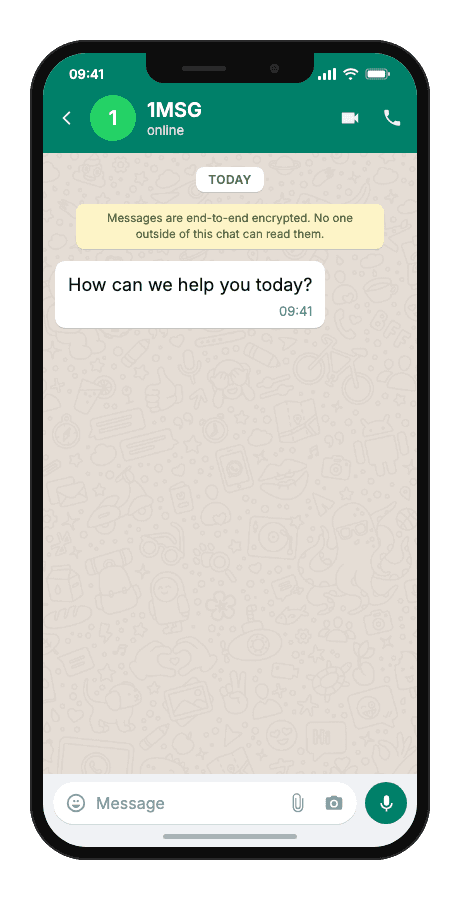
This scenario sends an interactive button message with sendButton during the 24-hour customer service window. Three quick replies let the client choose main menu, order status, or agent handoff without typing.
Template example
How can we help you today?
When to use it
Reach for this scenario when a customer message opens or continues a WhatsApp support session and they need a quick self-service path before an agent reads free text. It fits tier-1 support queues where repetitive order status, menu, and escalation requests slow first response inside the 24-hour customer service window.
Workflow
- Status tracked
A client message arrives via webhook and keeps the session open.
status:"read" - Build & send
Your backend sends the interactive button menu with footer guidance.
POST/send_button - Customer acts
The client taps one of the three options.
user action - Delivered
The webhook delivers the button id for routing to menu, status, or agent flows.
delivered
Technical implementation
Prerequisites
- 1MSG API Key · How to get API Key
- WhatsApp Business account · How to Connect WABA
- Open 24-hour session window · How the 24-hour window works
- Customer opt-in · How to Manage Customers Consent
- Webhook endpoint · How to Set Up Webhooks
Code examples
#!/usr/bin/env bash
set -euo pipefail

# === Configuration (replace "___" placeholders) ===
API_BASE_URL="https://api.1msg.io"        # production 1MSG API base URL
CHANNEL_ID="___"                           # channel ID from 1MSG dashboard
API_TOKEN="___"                            # channel JWT token (Bearer)


# === Test data ===
TEST_PHONE="___"                 # client phone in international format

PHONE_NORM="$(printf '%s' "$TEST_PHONE" | tr -cd '0-9')"
URL="${API_BASE_URL%/}/${CHANNEL_ID}/sendButton"

read -r -d '' PAYLOAD <<JSON || true
{
  "phone": "${PHONE_NORM}",
  "body": "How can we help you today?",
  "footer": "Choose an option",
  "sections": [
    { "type": "reply", "reply": { "id": "menu", "title": "Main menu" } },
    { "type": "reply", "reply": { "id": "status", "title": "Order status" } },
    { "type": "reply", "reply": { "id": "agent", "title": "Talk to agent" } }
  ]
}
JSON

RESPONSE="$(curl -s -w '\n%{http_code}' -X POST "$URL" \
  -H "Content-Type: application/json" \
  -H "Authorization: Bearer ${API_TOKEN}" \
  -d "$PAYLOAD")"

HTTP_CODE="$(printf '%s' "$RESPONSE" | tail -n1)"
BODY="$(printf '%s' "$RESPONSE" | sed '$d')"

case "$BODY" in
  *'"sent":true'*) ok=1 ;;
  *) ok=0 ;;
esac

if [ "$HTTP_CODE" -ge 200 ] && [ "$HTTP_CODE" -lt 300 ] && [ "$ok" -eq 1 ]; then
  echo "Message sent to client."
else
  echo "$BODY" >&2
  exit 1
fi
Response and delivery status
HTTP 2xx and JSON "sent": true mean 1MSG accepted the message for sending — not that it already reached the customer's phone. Save the id field (looks like wamid.…) to correlate delivery callbacks.
{
  "sent": true,
  "message": "Sent to [email protected]",
  "description": "Message has been sent to the provider",
  "id": "wamid.HBgLMzgwNjM5..."
}sentAccepted for sending — not yet on the customer's phone
idStore it; delivery callbacks and
hookInfoare keyed on this
Common errors
| Status | API response | Cause | Fix |
|---|---|---|---|
| 200 | Message was not sent: provide chatId, phone, bsuid, or username | No recipient the channel could resolve. | Pass exactly one recipient: phone (country code plus number, digits only), chatId (for example [email protected]) or bsuid. |
| 200 | Message was not sent: empty body | The body field is missing or empty. | Send a non-empty body string. It is required for text, reply-button and list messages. |
| 401 | token is required | The request has no token. | Add your channel token as the token query parameter: https://api.1msg.io/{channelId}/{method}?token=… |